
PROGRAMS USED:
GraphicsGale: This is the recommended program for this tutorial as it contains tools which are ideal for pixel art.
Alternatively programs like MS Paint, The Gimp, or Photoshop can be used.
TUTORIAL:
In this tutorial you will learn how to colour a template of a character walking in a pixel art style.
If you are looking for a tutorial about animating your characters, check this tutorial out.
Let's begin. We start off with a simple template of a character walking left (shown below). This template has a 1 pixel outline around the character. It consists of 8 individual frames which each has dimensions of 60x60 pixels. 
You can see a close up of one of the frames below.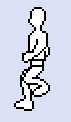
The next step is to fill in the template with colour. For the example below we have given the character a blue top, brown belt and grey trousers. 
Look closely at the close up below. You may notice we have coloured the back arm a slightly darker shade of blue and the back leg a darker shade of grey. This is important as it helps to distinguish the movement of the character when he is walking. 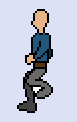
Next, we are going to colour the outline around the character. We will use a slightly darker shade of colour for the outline than the colour it surrounds. 
The example frame below shows we have changed the outlining colours. It's important that the outline colour is not too similar to its surrounding colours, so that we can actually see the outline.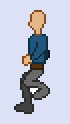
Now, we are going to add some shading to the character to make it seem more realistic. 
First of all, you should determine where the light source is coming from. In this example, we will put the light source on the top left of the character.
You can then add highlights and shadows. For the highlights, choose a slightly lighter colour, and apply it lightly to the character closest to the light source.
For the shadows, pick a darker colour than the colour you're adding a shadow to. Place the shadows on the other side of the character where the light source would have difficulty reaching.
To blend the highlight or shadow with the other colours you can dither the edges slightly. If you want to learn more about the pixel art technique of dithering, check out this tutorial.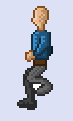
The last step is to add detail onto the character. In the example below we have added a face and hair to the character, and also added a slight highlight on the belt.
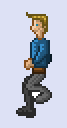
You can be as creative as you like, and add all kinds of accessories to the character. Props can be added such as swords, lanterns, shields or anything that you want the character to carry. This same basic template can also be used to animate all kinds of two legged characters and can be used for other creatures like monsters.
Be creative!
Created an animated sprite like the one above?
If you would like your sprite displayed in the sprites section of this site, then please email us the sprite along with your credited name. Your sprite could then be featured on this site.